
Pipeline View
The Pipeline view is a Kanban board where each column represents an intake stage. Drag leads from one column to the next as they progress from a fresh inbound call to a signed retainer. This view is faster than the table for daily intake work.
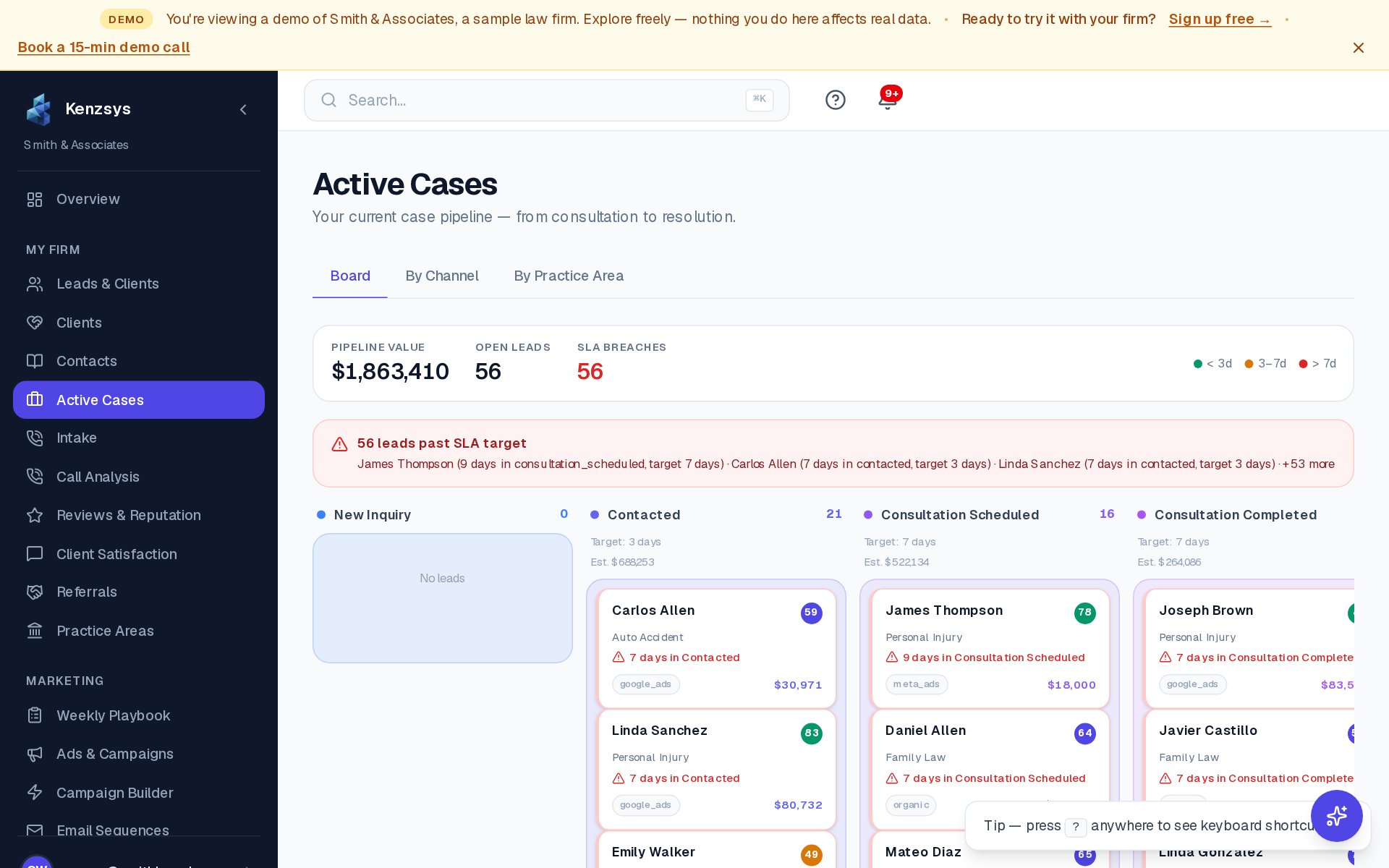
How to switch to Kanban view
Open the Leads page from the left sidebar. In the top-right corner, you'll see two view-toggle buttons: a list icon and a grid icon. Click the grid icon (or the toggle labeled Pipeline) to switch to Kanban. Your selection is saved per user, so Kenzsys will remember which view you prefer next time you sign in.
What the stages mean
Kenzsys ships with five default stages that fit most law firm intake processes. Each lead lives in exactly one stage at any time:
- New — the lead just arrived. No one has reached out yet. This is the queue your intake coordinator should clear every morning.
- Contacted — intake has reached out by phone, text, or email. The lead is now in conversation.
- Consultation Scheduled — a meeting (in-person, phone, or video) is booked with an attorney.
- Retained — the engagement letter is signed. A matching matter exists in Clio.
- Not Retained — the lead chose another firm, was disqualified, or stopped responding.
Owners and admins can rename, reorder, or add stages under Settings > Pipeline Stages. Custom stages flow through to reporting automatically.
How to move a lead between stages
You have three ways to move a lead:
- Drag and drop on the board. Click and hold a lead card, then drag it to the target column. Release to drop. The change saves immediately.
- Use the stage selector on the lead detail page. Click a lead card to open its detail panel. Click the stage badge at the top, choose a new stage from the dropdown, and click Save.
- Bulk update from the table view. Switch back to the table view, select multiple leads with the checkboxes on the left, then choose Change stage from the bulk-action menu at the top.
Auto-progression: When a new matter is created in Clio with a phone number that matches a lead in your pipeline, Kenzsys automatically moves that lead to Retained and links the matter ID. You don't have to do this manually.
How stage data feeds the Retained Clients KPI
The Retained Clients KPI on the dashboard counts every lead that reached the Retained stage during the selected date range. The conversion rate (Retained ÷ Leads) is the most important single number in the entire product. Two implications:
- Move leads to Retained promptly when they sign. A backlog of pre-Retained leads understates your true conversion rate.
- Use Not Retained deliberately rather than leaving dead leads in earlier stages. A clean pipeline produces accurate reports.
Filtering the Kanban
The same filter bar from the table view (date, channel, source, score, practice area) works on the Kanban view. Filtering applies across all columns simultaneously so you can isolate, for example, only Google Ads leads from the last 14 days with a score above 70.
Don't skip stages: Moving a lead from New directly to Retained breaks the conversion-rate-by-stage report. Always step through Contacted and Consultation Scheduled, even if the consult was the same call.