
Leads Overview
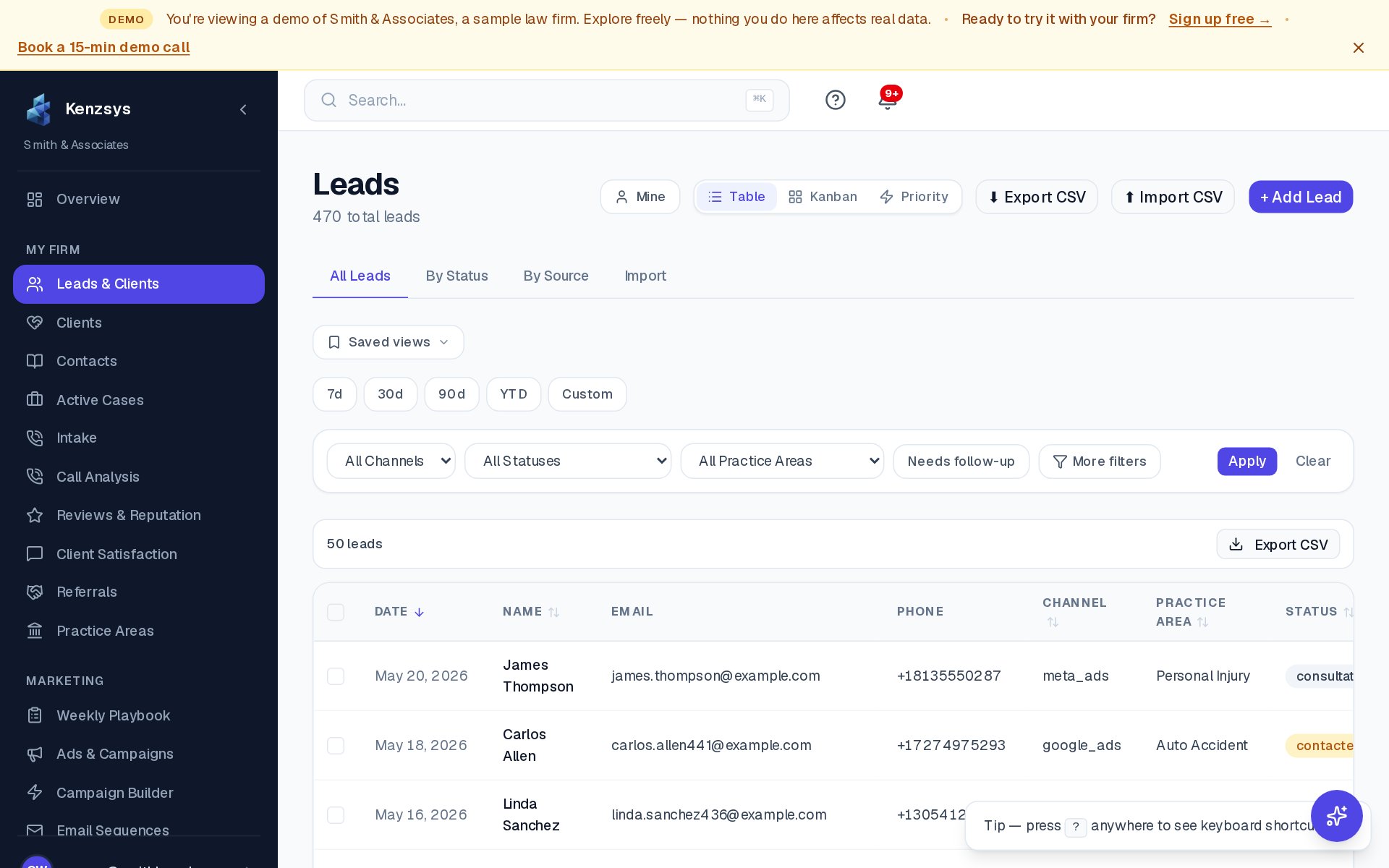
The Leads page is where every person who contacted your firm lands — phone calls, web form submissions, click-to-call from ads, and chat conversations all flow into one ranked list. This page explains what counts as a lead, how leads are created, and how to navigate the table.
What is a lead in Kenzsys?
A lead is any person who contacted your firm through a tracked channel. That includes:
- A phone call captured by CallRail (most common source for most firms).
- A submission on a connected web form (contact form, free consultation form, intake form).
- A click-to-call from a Google Ads ad on mobile.
- A message sent through Google Business Profile.
- A manually entered lead (added by intake staff after a referral or walk-in).
Repeat contacts from the same phone number or email within 30 days are merged into a single lead record — multiple touchpoints, one person.
How are leads created?
Leads are auto-ingested from your connected integrations. Once CallRail, Google Ads, and your web forms are connected, you do not need to lift a finger — every new contact appears in the Leads page within seconds (CallRail) or hours (form submissions and Ads). Manual leads can be added by clicking + New Lead in the top right of the page.
What the Leads table shows
The Leads page is a table with one row per lead. Default columns are:
- Name — caller or form submitter's name (or "Unknown caller" if no name was captured).
- Phone — primary contact number.
- Source — where the lead came from (Google Ads, Organic, CallRail, GBP, Referral).
- Score — the AI-generated 0 to 100 quality score (see Lead Scoring).
- Stage — current pipeline stage (New, Contacted, Consultation Scheduled, Retained, Not Retained).
- Created — timestamp of first contact.
- Owner — the team member assigned to follow up.
How to filter and search
Use the filter bar at the top of the table to narrow the list. Filter options include:
- Date range — restricts to leads created in the selected period.
- Channel — Google Ads, Meta, CallRail, GBP, Organic, Direct, Referral, Manual.
- Status — any pipeline stage or "All open" / "All closed."
- Practice area — PI, Family, Criminal, etc.
- Score range — drag the slider to show only high-quality leads (e.g., 70-100).
The search box at the top right does a fuzzy search across name, phone, email, and notes. Save a frequently used filter combination as a named view using the Save view button — saved views are shared with your team.
Opening a lead's detail page
Click any row to open the lead detail page. There you'll find a full timeline of every touchpoint (calls, emails, stage changes, notes), the lead's quality score with breakdown, all contact information, and a stage selector to move the lead through your pipeline.
In this section
- Pipeline View — switch to a Kanban board to drag leads through stages.
- Lead Scoring — how the 0-100 AI quality score works.
- Importing Leads — bulk import historical leads via CSV.