
Onboarding
This page covers your first session with Kenzsys end to end — from clicking the invite email through seeing your first live leads appear on the dashboard. Follow each step in order.
Step 1 — Accept your invite
You'll receive an email from hello@kenzsys.com with the subject line "You've been invited to Kenzsys." Open it and click the Accept Invite button. The link takes you to a signup page where your email is pre-filled. Create a password (minimum 12 characters), accept the terms of service, and click Create Account. You'll be redirected to your new dashboard with an onboarding checklist pinned to the top.
If you signed up directly without an invite, you'll be asked to enter your firm name and primary practice area before reaching the dashboard. The first user to sign up becomes the Owner.
Heads up: Only the Owner can manage billing and assign Admin roles. Make sure your managing partner or office manager is the person who creates the account first.
Step 2 — Confirm your firm details
In the left sidebar, click Settings, then click the Firm tab at the top. Fill in:
- Legal name — the official name of your law firm, exactly as it appears on filings.
- Practice areas — select all that apply (Personal Injury, Family Law, Criminal Defense, etc.). These power the GEO Visibility prompt panel and content suggestions.
- Primary office address — used to match your Google Business Profile and scope local search visibility.
- Time zone — controls when scheduled reports and the Weekly Playbook are delivered.
Click Save in the bottom right. If you have multiple offices, open the Locations tab and click Add Location for each one. Each location can have its own tracking numbers and its own GBP listing.
Step 3 — Connect at least one integration
Still in Settings, click the Integrations tab. You'll see a grid of integration cards: Google Ads, Meta, CallRail, Google Business Profile, Clio, Google Search Console, and Lawmatics. Each card shows a Connect button. Click it to begin the OAuth flow for that provider — a popup opens, you sign in to your account, and you authorize Kenzsys to read your data.
For the first session, we recommend connecting two integrations:
- CallRail or Google Ads so leads and spend start populating immediately.
- Clio so retained-client tracking is in place before any new matters are created.
Full step-by-step instructions for each provider are in Connecting Integrations.
Step 4 — Invite your team
Click the Team tab in Settings. Click the Invite Member button in the top right, enter the person's email, choose a role, and click Send. Kenzsys ships with three roles:
- Owner — full access including billing and Owner role assignment. Usually the managing partner.
- Admin — full access except billing. Suitable for marketing managers and senior intake staff.
- Member — can view dashboards, work the lead pipeline, and read reports. Suitable for intake coordinators and most attorneys.
Invitees receive an email immediately. Pending invites appear at the bottom of the Team page; you can revoke or resend any invite that hasn't been accepted.
Step 5 — Watch the dashboard come to life
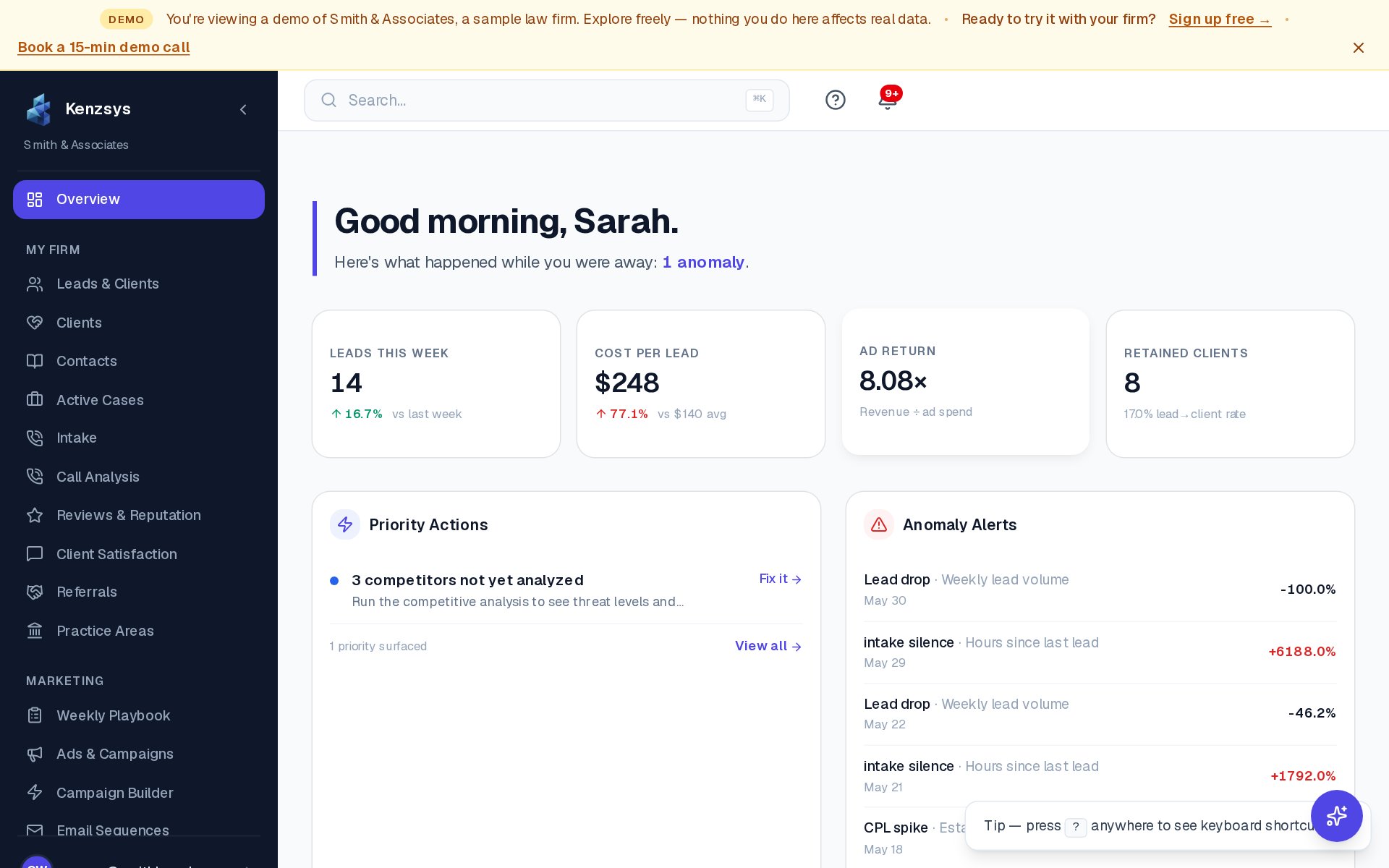
Click Overview in the left sidebar to return to the main dashboard. Within 5 to 15 minutes of connecting an integration, you'll see data populate:
- The Leads This Week KPI card updates as calls and form fills arrive.
- The Performance Trends chart starts plotting by channel.
- Priority Actions and Anomaly Alerts remain quiet until 7 days of baseline data accumulate — this is normal.
If nothing appears after an hour: Go to Settings > Integrations and confirm each connected card shows a green "Connected" indicator with a recent sync timestamp. If a card shows "Reconnect required," click it and re-run the OAuth flow.