Google Analytics 4 Integration
Connecting Google Analytics 4 (GA4) fills in the layer between a visitor landing on your website and that visit turning into a lead. Once linked, Kenzsys pulls your site's traffic sources, landing page performance, and on-site behavior automatically, so you can see which pages actually bring in leads instead of just which ones rank or get clicked.
What this integration enables
Once GA4 is connected, the following become available in Kenzsys:
- Website-traffic-to-lead correlation, showing which landing pages produce leads.
- The Attribution page gains a top-of-funnel view built from GA4 sessions and traffic sources.
- The Performance Trends chart can show website sessions and engagement alongside paid channels like Google Ads and Microsoft Advertising.
GA4 works alongside two other Kenzsys integrations rather than replacing them: Google Search Console shows the search queries and rankings that bring visitors to your site, Google Ads shows what you spent to get them there, and GA4 shows what those visitors actually did once they landed.
Step-by-step: how to connect
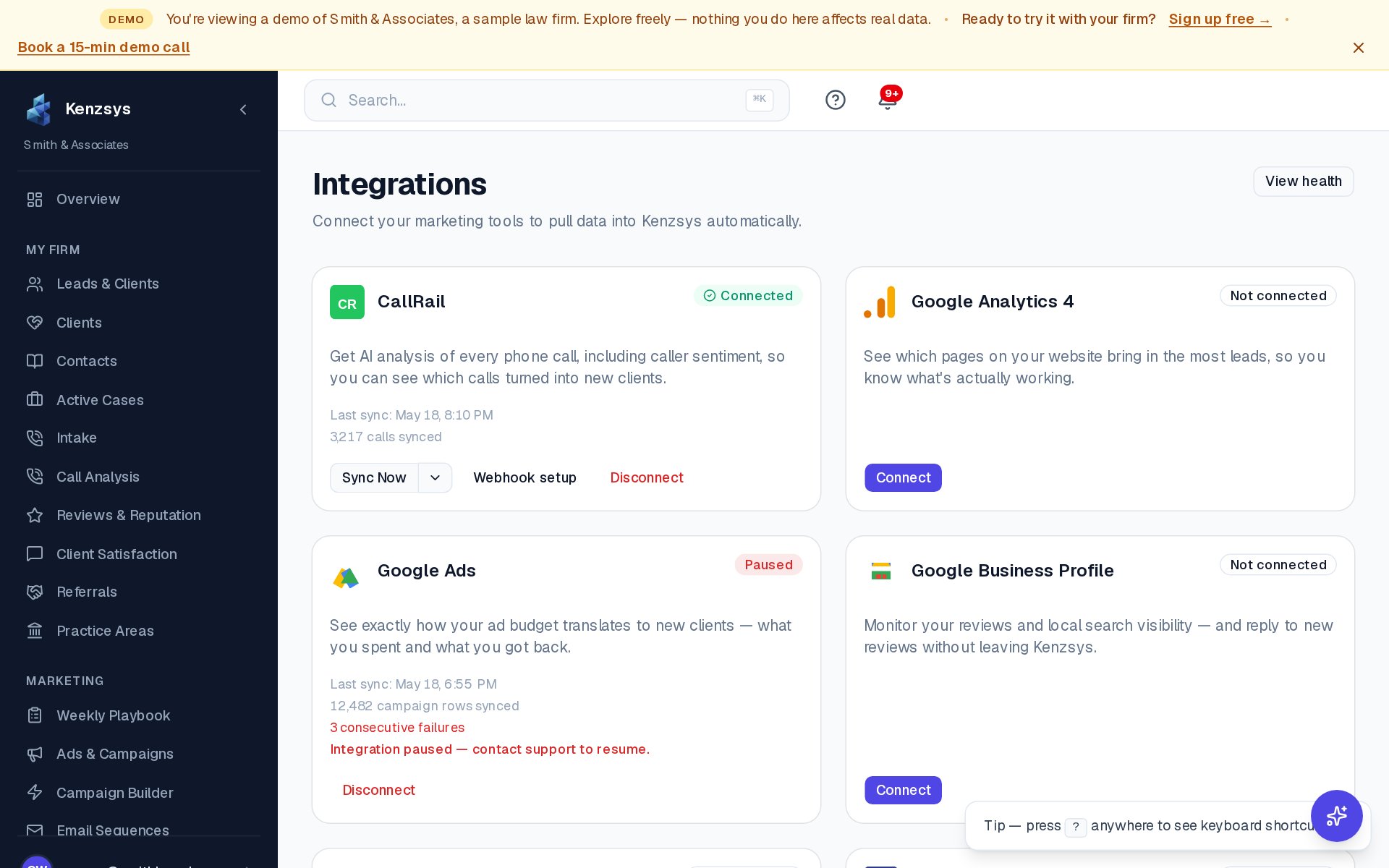
- In the Kenzsys left sidebar, click Settings, then click the Integrations tab.
- Find the Google Analytics 4 card in the grid and click Connect.
- A popup opens to the Google sign-in page. Sign in with the Google account that has access to your firm's GA4 property.
- On the OAuth consent screen, review the requested permissions (read-only access to Analytics data) and click Allow.
- The popup closes and Kenzsys lists the GA4 properties your login can access. If your account manages several sites, pick the property that belongs to your firm's website.
- The card flips to Connected and the first sync begins automatically.
What syncs and how often
Once connected, GA4 data syncs daily:
- Sessions and users sync daily.
- Top landing pages sync daily.
- Conversion events sync daily.
Where to see the data
GA4 data shows up in several places throughout Kenzsys:
- Attribution page — top-of-funnel traffic sources and landing page performance.
- Performance Trends — website sessions and engagement shown alongside paid channels.
- Reports — monthly AI reports include a website traffic section once connected.
First sync takes 5 to 15 minutes. If you don't see any events after 15 minutes, see the troubleshooting section below.
Troubleshooting
If you connected GA4 but see no data after 15 minutes:
- Confirm the signed-in Google account has at least Viewer access to the correct GA4 property. Open analytics.google.com in a new tab while signed in as the same account and confirm you can see the property's data. Also confirm it's a GA4 property and not an older Universal Analytics property, which GA4 integrations don't support.
- If your account manages several sites, confirm you selected the right property when linking. You can switch the linked property from Settings > Integrations > Google Analytics 4 > Switch account.
- If none of the above resolves it, email hello@kenzsys.com with your GA4 property ID and we'll investigate.