
Google Business Profile Integration
Google Business Profile (GBP) is the listing that appears in the "map pack" when someone searches your practice area plus city. Connecting GBP to Kenzsys lets you track reviews, reputation, and local search visibility without logging into the GBP console separately.
What this integration enables
Once GBP is connected:
- The Reviews & Reputation page lists every review imported from GBP, with star rating, reviewer name, date, and full text.
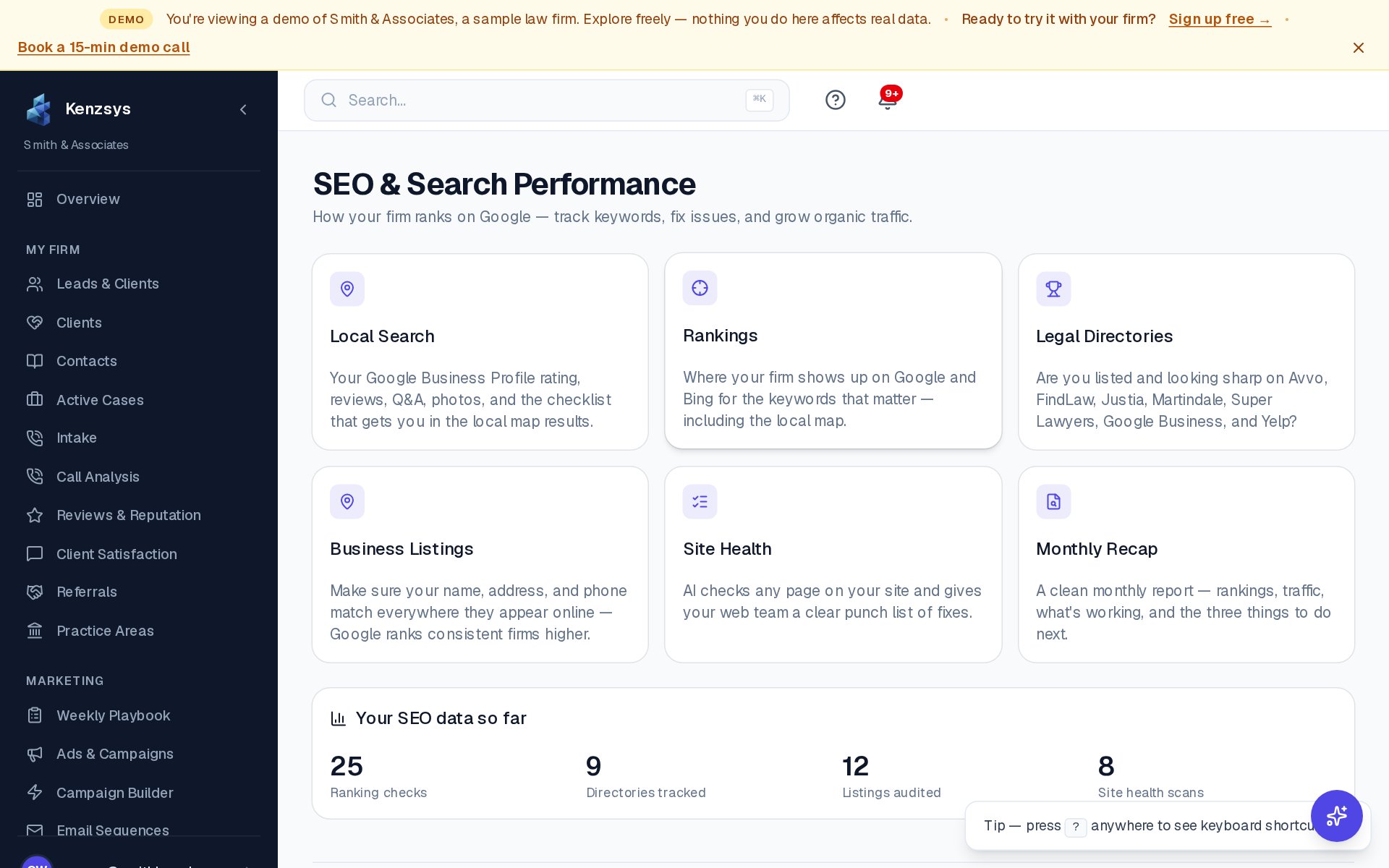
- The SEO > Local Search page shows GBP metrics: profile views, search impressions, direction requests, and website clicks.
- Star rating and review velocity feed the Priority Actions widget (so unanswered reviews surface as tasks).
- The Weekly Playbook flags review-response gaps and rating drops.
- Local SEO trends become trackable over time.
Step-by-step: how to connect
- In the Kenzsys left sidebar, click Settings, then click the Integrations tab.
- Find the Google Business Profile card and click Connect.
- A popup opens to the Google sign-in page. Sign in with the Google account that has Owner or Manager access to your firm's GBP listing.
- Review the requested permissions (read-only access to GBP) and click Allow.
- Kenzsys queries Google and displays a dropdown of every business listing your account can access. Pick your firm's listing from the dropdown.
- Click Link this location. The card flips to Connected and the first sync begins.
What syncs and how often
On the first connection, Kenzsys pulls the last 6 months of GBP data:
- All reviews with star rating, reviewer name, date, full text, and your published response (if any).
- The current star rating and total review count.
- The Q&A count and any unanswered questions.
- The total photo count on the listing.
- Weekly search impressions, profile views, direction requests, and website clicks.
After the initial backfill, GBP data refreshes weekly. New reviews specifically poll every 6 hours, so a fresh review appears in Kenzsys within a few hours of posting.
Multiple office locations
If your firm operates more than one office, each location has its own GBP listing. Each one can be connected separately:
- Connect the first location following the steps above.
- Click + Add another location on the GBP card.
- Repeat the OAuth flow, picking a different listing from the dropdown.
- Map each connected listing to the matching office address you created under Settings > Locations.
Tip for multi-location firms: Connect all of them at once, even small offices. The dashboard rolls up metrics across every connected location, while the SEO > Local Search page lets you drill into each one individually.
If an agency manages your GBP
Many firms have a digital marketing agency that owns and manages their GBP listing. To connect GBP to Kenzsys, you need a Google account with at least Manager-level access to the listing. Two options:
- Ask the agency to add your firm's primary Google account as a Manager on the listing. This is the recommended approach since it survives a change of agency.
- Ask the agency to connect Kenzsys using their account. This works but means losing the connection if you switch agencies.
Troubleshooting
- "No business listings found" — the Google account you connected with doesn't have Owner or Manager access to any GBP listings. Switch to an account that does.
- Reviews appear but no impressions data — GBP requires the listing to be verified and active. New or unverified listings only sync reviews.
- Linked the wrong location — open Settings > Integrations > Google Business Profile and click Switch location to pick a different listing without re-running OAuth.