
Anomaly Alerts
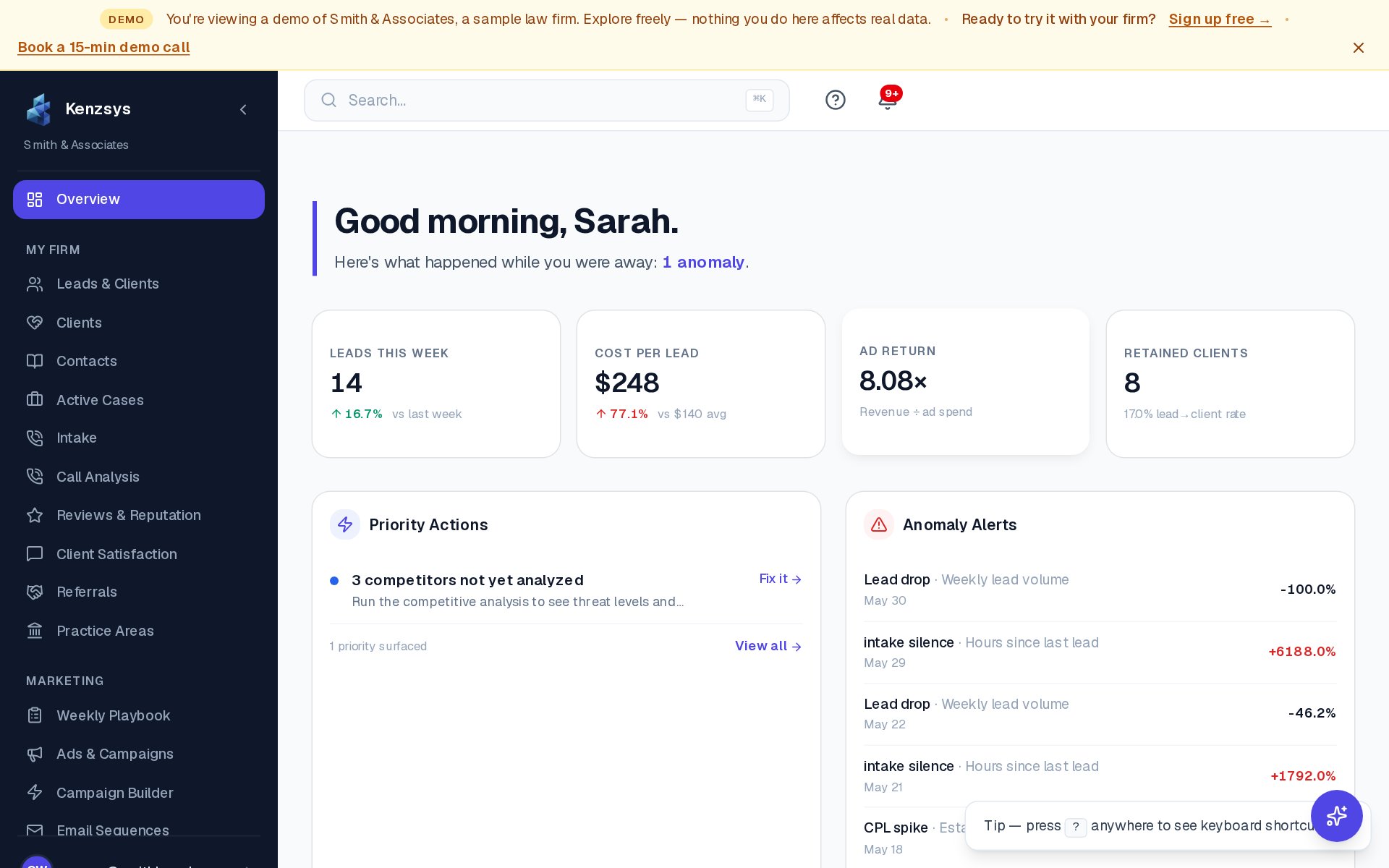
Anomaly Alerts are the AI's early-warning system. Kenzsys watches every marketing KPI continuously and surfaces alerts when something moves more than it should — a sudden lead-volume drop, an out-of-pattern CPL spike, or an unusual stretch of intake silence. The goal is to give you a chance to react before a quiet problem becomes a costly one.
What triggers an alert?
Kenzsys ships with five default detectors. You can adjust their sensitivity but you can't disable them entirely on standard plans.
- Lead volume drop > 25% week-over-week. Triggers when total leads in the most recent 7-day window falls more than 25% below the prior 7-day window.
- Cost Per Lead spike > 30%. Triggers when CPL rises more than 30% versus the 4-week running average. Filtered to ignore single-day spikes.
- Intake silence > 48 hours. Triggers when no new lead has been recorded in 48 hours during normal business hours. Often indicates a broken tracking number or paused campaign.
- Review rating drop. Triggers when your GBP star rating drops by 0.2 or more in a 14-day window — usually one bad review hitting a small review base.
- Spend without conversions. Triggers when a single Google Ads campaign spends more than $500 in 7 days with zero conversions.
Where to see alerts
Alerts appear in two places:
- The Overview dashboard. The Anomaly Alerts card on the home screen shows the 3 most recent unresolved alerts. Click See all to open the full alerts list.
- By email. When an alert is generated, Kenzsys sends an email to every Owner and Admin within 5 minutes. The email has the alert details, the underlying numbers, and a link to the relevant Kenzsys page.
Reading an alert
Each alert displays:
- Title — the metric and the direction of movement (e.g., "Leads down 32%").
- Severity — Low, Medium, or High, based on deviation size and metric importance.
- Affected period — the date range the anomaly covers.
- One-sentence explanation — the AI's best guess at the likely cause.
- Suggested action — what to check or change.
Dismissing an alert
Once you've reviewed an alert and either fixed it or determined it doesn't need action:
- Open the alert from the dashboard or alerts list.
- Click the Dismiss button in the top right.
- (Optional) Add a one-line note explaining why you dismissed it. Notes appear in the alert history.
- The alert disappears from the active list and moves to the resolved history.
Configuring sensitivity
To tune how aggressive the AI is about generating alerts:
- Click Settings in the left sidebar.
- Click the Notifications tab.
- Scroll to Anomaly Sensitivity and pick one of three levels:
- Low — only flag severe deviations (≥40% changes). Best for large firms with naturally noisy data.
- Medium — the default. Flags moderate deviations (≥25%).
- High — flag smaller shifts (≥15%). Best for small firms where every lead matters.
- Click Save changes. Sensitivity takes effect on the next detection cycle (typically within an hour).
Calibration period: Anomaly detection needs at least 7 days of historical data to establish a baseline for any metric. New Kenzsys accounts will not see alerts during the first week — this is normal, not a malfunction. The longer you've been on Kenzsys, the more accurate the alerts become.
Common false alarms
A few situations regularly trigger alerts that aren't really problems:
- Holidays. Lead volume drops over Christmas, Thanksgiving, and Independence Day. Dismiss without action.
- Planned campaign pauses. If you intentionally paused a campaign and CPL spiked because remaining spend is concentrated, dismiss with a note.
- Tracking number changes. A sudden lead drop right after rotating a CallRail number means the new number isn't on your website yet — fix the website, not the dashboard.